27 Device-trust CAA via MDM
Grants access to sensitive apps based on the state of the device it comes from, not just to the account. Endpoint verification collects posture signals — OS version, disk encryption, screen lock, admin-approval state, company-owned flag — into the Context-Aware Access attribute set, and an access level built from those attributes is applied through the three DEFAULT policies (all Google-owned apps, all SAML apps, all OAuth apps). The signals depend on the Endpoint Verification helper or Chrome extension has to be deployed and the user signed into the managed Chrome profile.
Documentation: Protect your business with Context-Aware Access ↗ · Deploy Context-Aware Access ↗
Caveats
- Block is the only action that is a control1
- Rolling the default policies straight to Block is the classic CAA self-lockout2
- An access level nothing can satisfy locks everyone out the moment it goes Active3
- CAA does not apply to a session already established4
- Requires Enterprise Standard+, Education Standard+, Frontline Standard+, Enterprise Essentials Plus…5
Setup steps
- open ↗
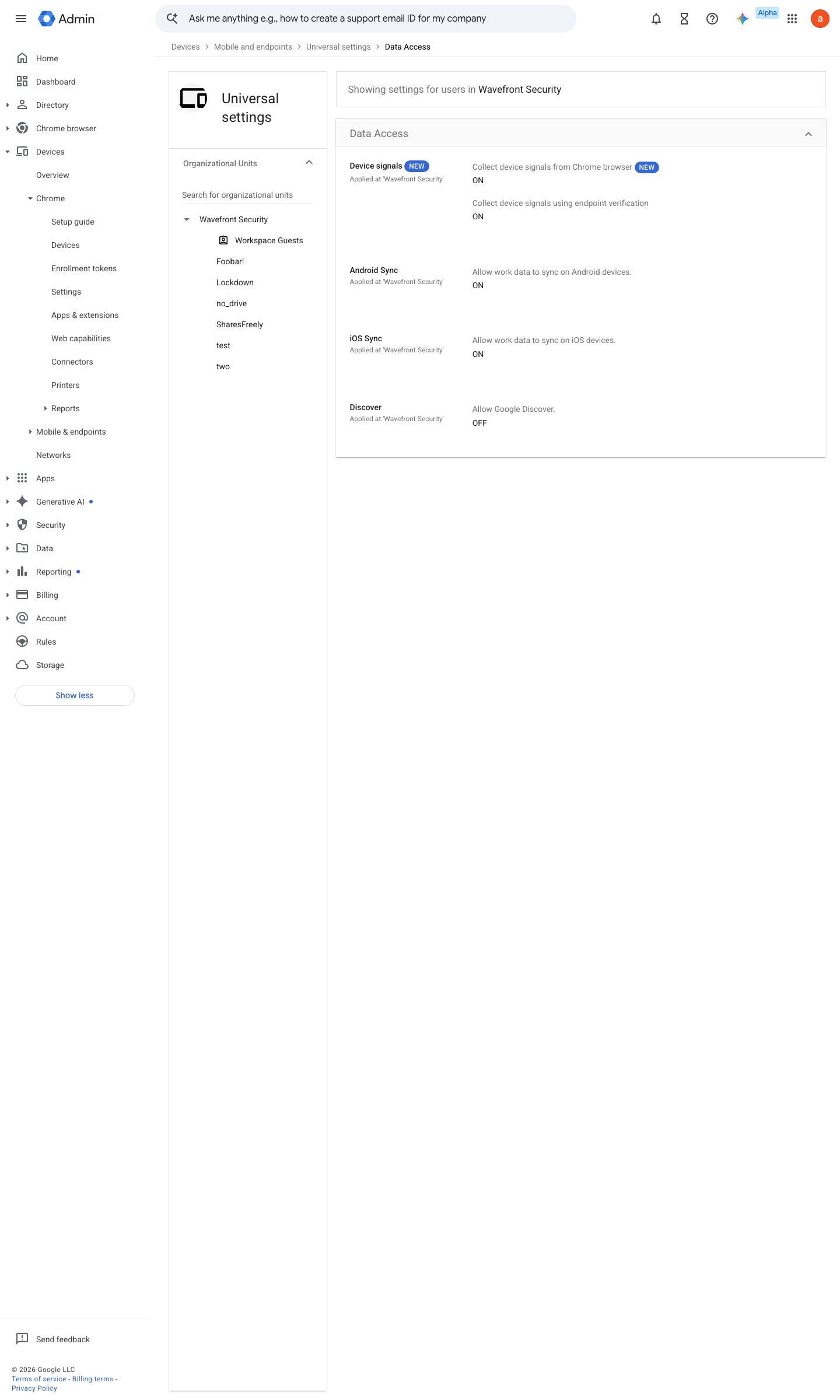
https://admin.google.com/ac/managedsettings/724141353720/UniversalAdditionalSettingsTab?vid=EMM_UNIVERSAL_SETTINGS_VIEW · captured 2026-07-15
Devices › Mobile & endpoints › Settings › Universal › Data access- Collect device signals using endpoint verification
ON- Collect device signals from Chrome browser
ON (for the target OU)
Turn endpoint verification on or off ↗ Turn Chrome signals sharing on or off ↗
- open ↗
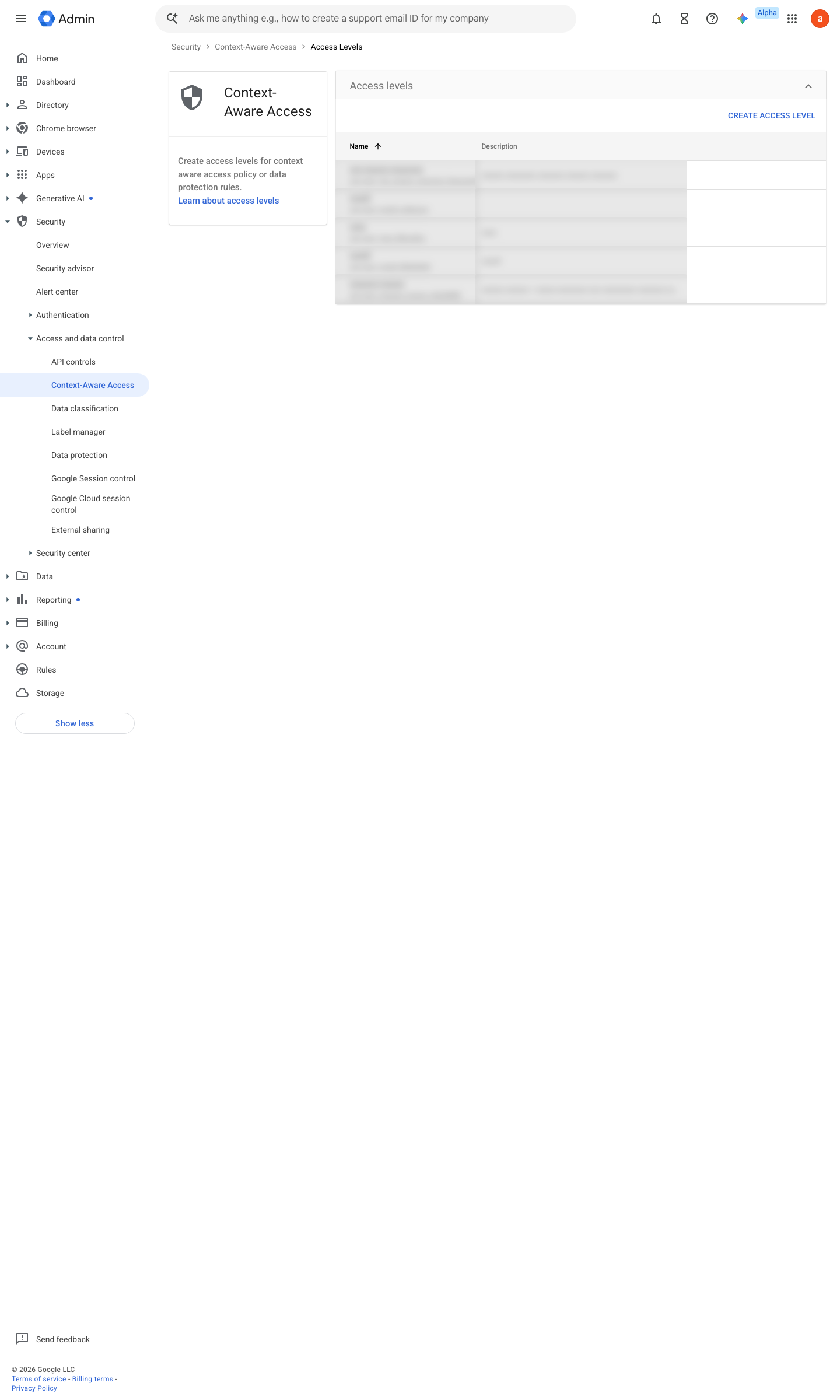
https://admin.google.com/ac/security/context-aware/access-levels · captured 2026-07-15
Devices › Mobile & endpoints › Settings › Universal › SecurityDevice approvals = Require admin approval. Applies to user-owned/personal devices; company-owned devices registered by serial number are auto-approved (except Android work-profile devices)
- open ↗
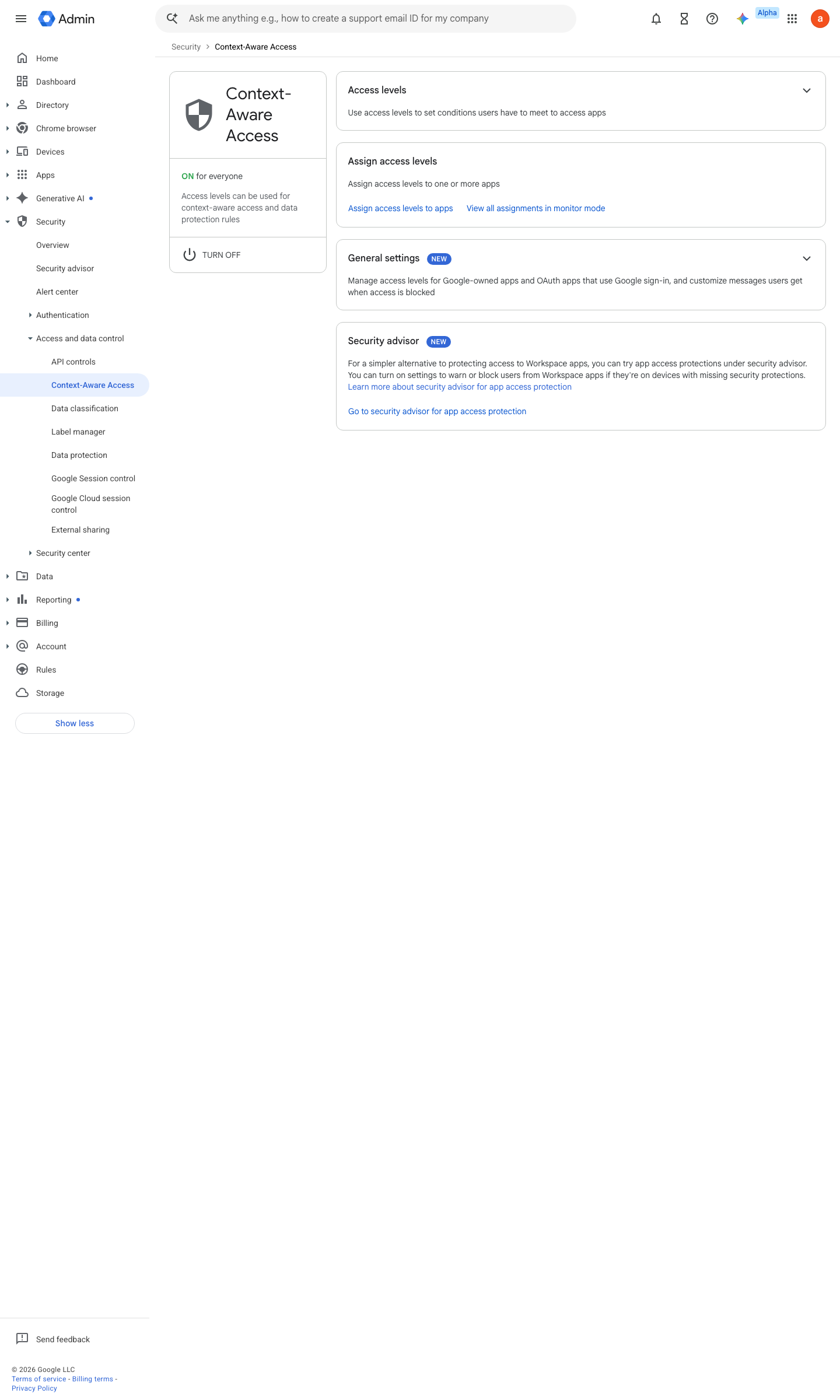
https://admin.google.com/ac/security/context-aware · captured 2026-07-15
Security › Access and data control › Context-Aware Access › Access levels- Access level 'trusted-device': Device policy
admin-approved AND encrypted storage AND screen lock AND OS version ≥ baseline- company-owned
true
-
Security › Access and data control › Context-Aware Access › Access levelsdevice.chrome.management_state == ChromeManagementState.CHROME_MANAGEMENT_STATE_BROWSER_MANAGED && device.chrome.versionAtLeast("148.0.0.0") - open ↗
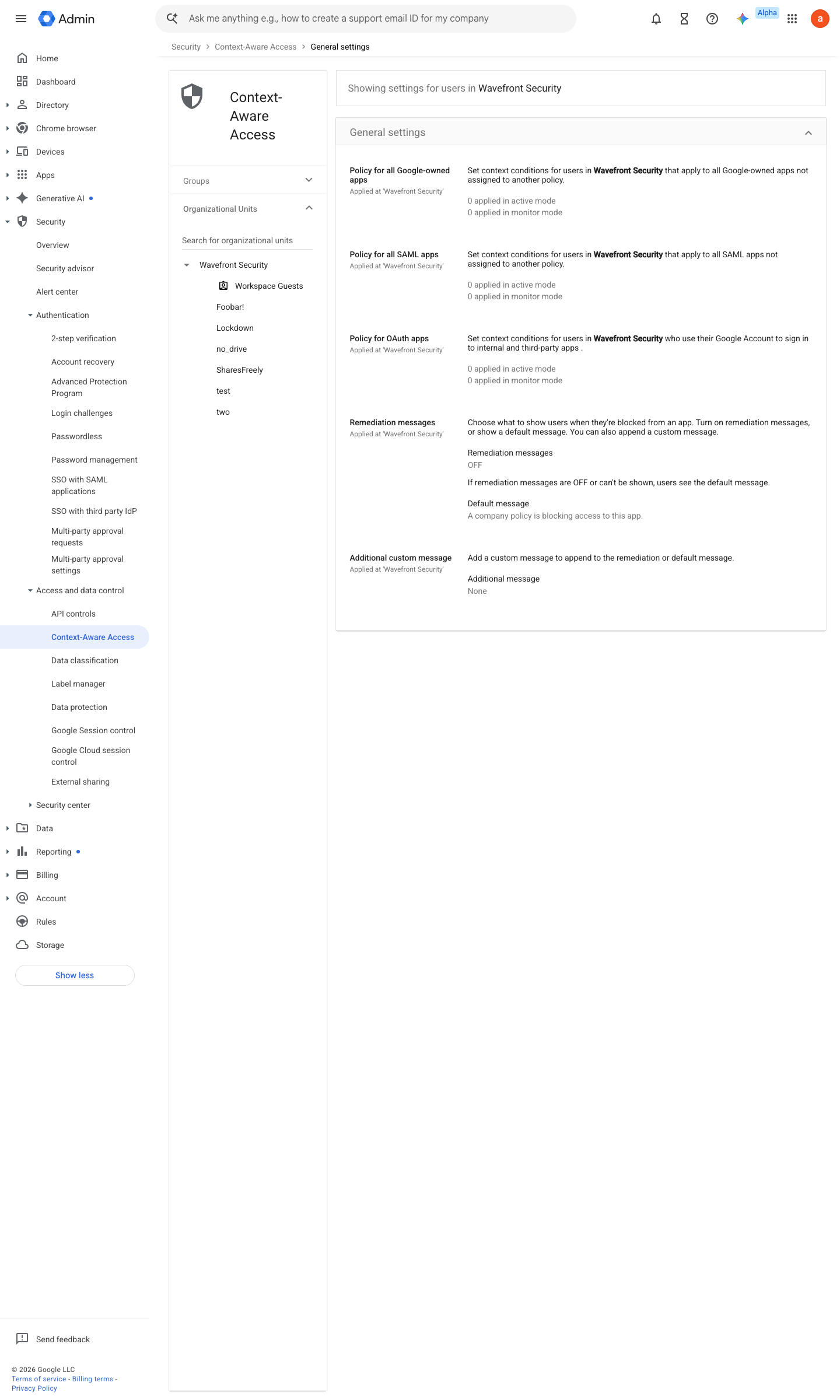
https://admin.google.com/ac/security/context-aware/settings · captured 2026-07-15
Security › Context-Aware Access › General settingsGeneral settings: Policy for all Google-owned apps / all SAML apps / OAuth apps = trusted-device; Action = Monitor first, then Block once the monitor log is clean. Do not use Warn (OAuth policies offer only Monitor and Block)
Assign Context-Aware Access levels to apps ↗ Apply a default Context-Aware Access policy for all SAML apps ↗
Ongoing maintenance
- automatable: script On every Chrome major release: raise the versionAtLeast() floor in the CEL access level.
- requires a human Weekly: work the device-approval queue — pending approvals block real users.
How to verify
-
From an unmanaged browser, sign in as a test user — the CAA log should show the device failing the level (Blocked, or Access Denied (Monitor mode) while ramping).
-
From a managed device, confirm the log shows device signals present (no "No Device Signals" / "Device ID: UNKNOWN").
v0.0.3 Prevent edition Ent Std+ + MDM policy #25 · #4, #7 ↗