50 Offline & desktop-sync data minimization
draft
Offline Docs, offline Gmail and Drive for desktop each mirror tenant data onto the local disk, where a lost, stolen or seized laptop yields it with no Workspace authentication in the way. This control turns those caches off, or restricts Drive for desktop to authorized devices — listed in the company-owned device inventory with a matching serial number — so the data stays server-side where the access controls actually are.
Caveats
Setup steps
- open ↗
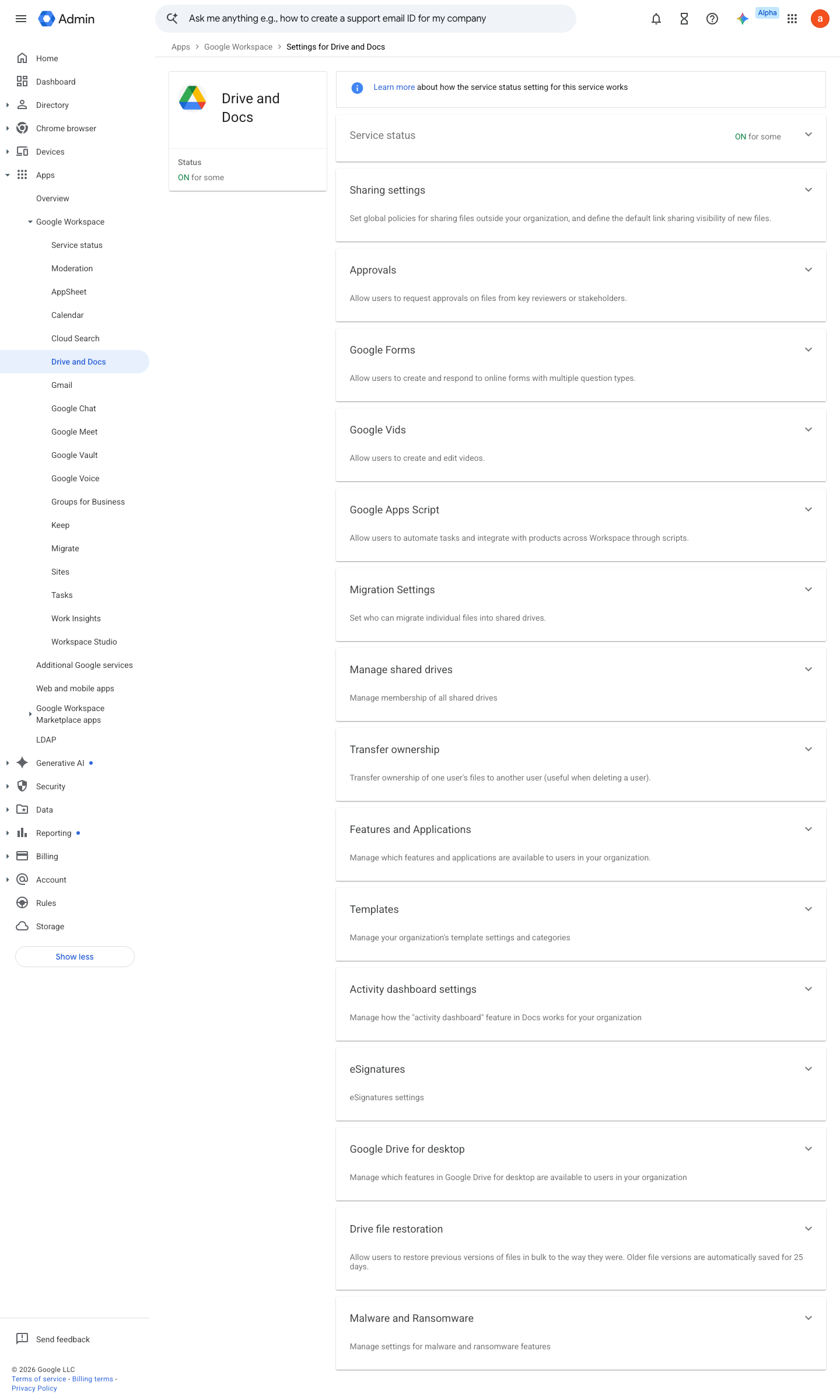
https://admin.google.com/ac/managedsettings/55656082996 · captured 2026-07-15
Apps › Google Workspace › Drive and Docs › Features and Applications- Offline access
Use policies to control offline access from computers (not 'Allow users to turn on offline access')
-
Apps › Google Workspace › Drive and Docs › Features and Applications › Google Drive for desktopAllow Google Drive for desktop in your organization = off for high-risk OU; otherwise 'Only allow Google Drive for desktop on authorized devices' = checked
Set up Drive for desktop for your organization ↗ Use Drive for desktop with Google endpoint management ↗
- open ↗
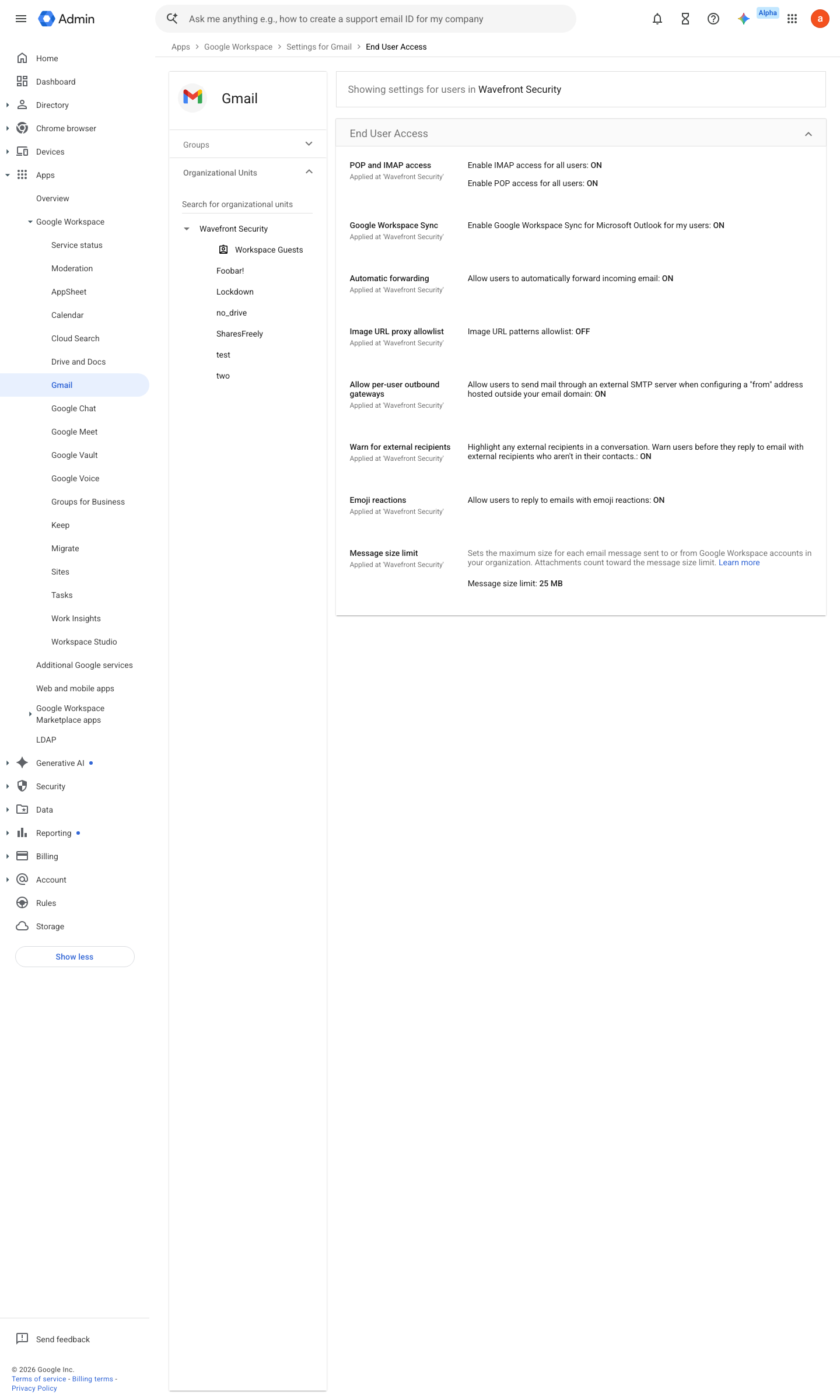
https://admin.google.com/ac/apps/gmail/enduseraccess · captured 2026-07-15
Apps › Google Workspace › Gmail › User settingsEnable Gmail web offline = unchecked for the OU; optionally check 'Force deletion of offline data on log out of Google account'
How to verify
-
On a covered machine, confirm Drive offline availability and desktop-sync are refused for the restricted OU (the Drive settings toggle should be absent/greyed for a test user).
draft v0.0.3 Prevent policy #25 · #15, #7 ↗